





Lot/Serial Number Tracking and FEFO (Best Before/Expiry Date Management) in Odoo
Overview
Lot and Serial Number tracking lets Odoo differentiate identical products by batch (lot) or by individual unit (serial number), and track information like arrival dates, expiration dates, and where each batch/unit has moved. When combined with expiration date tracking, Odoo can automatically enforce FEFO (First Expired, First Out) — meaning stock closest to its expiry date is picked and shipped first, instead of picking randomly or by receipt order.
This is essential for any business dealing in perishables — food, pharmaceuticals, cosmetics, chemicals — where selling older/expiring stock first reduces waste and avoids compliance issues.
Lot vs. Serial Number:
Lot — groups multiple units under a single identifier (e.g., a batch of 500 units received together). Good for traceability at the batch level.
Serial Number — unique to a single individual unit. Required when you need to trace one specific item (e.g., electronics, high-value goods).
A product can be tracked by lots or serial numbers, not both at once. Everything described below for lots — expiration dates, FEFO, alerts, traceability — applies identically to serial numbers; only the granularity differs (one identifier per unit instead of per batch).
-> Configuration :-
Step 1: Enable Lots & Serial Numbers
Scroll to the Traceability section and check the box for Lots & Serial Numbers.
Once Lots & Serial Numbers is enabled, a new option appears directly below it: Expiration Dates. Check this box as well, then Save.
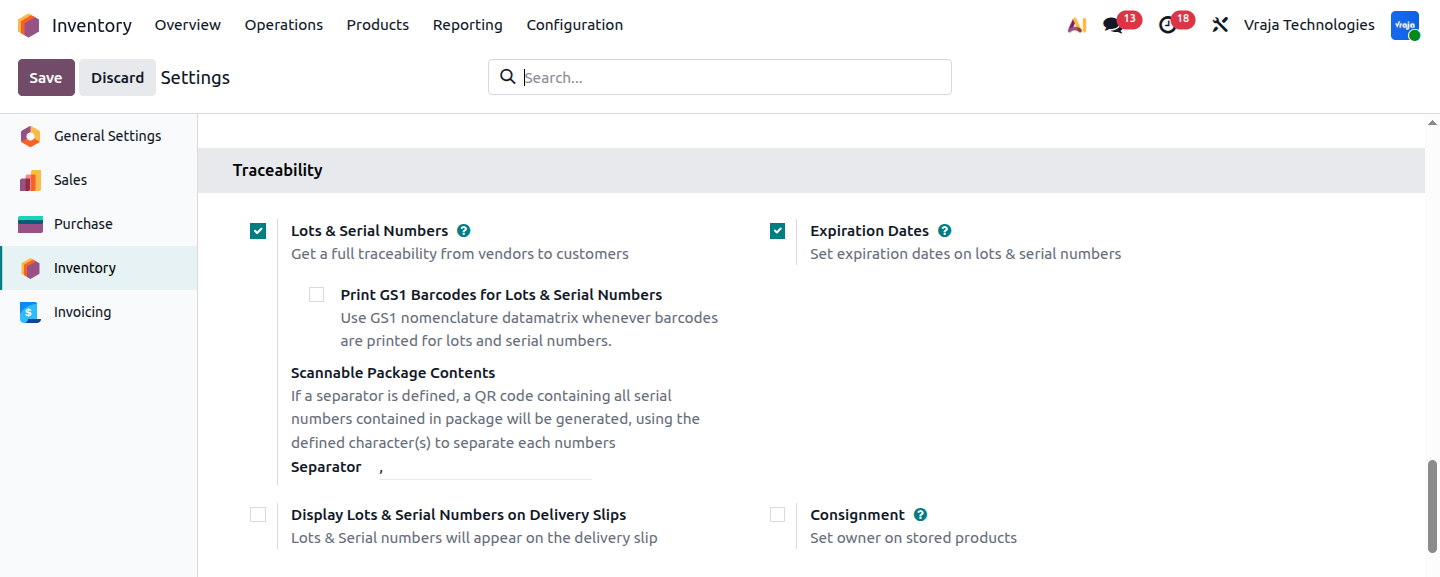 (image :- lot_config.png)
Step 2: Enable Expiration Dates
This unlocks four date fields that Odoo will track per lot/serial number in product:
Date Field				|					Purpose
________________________|_____________________________________________________
						|
Expiration Date			|	When the product is no longer safe/usable. Used for compliance and regulatory purposes.
						|
Best Before Date		|	When product quality may start to decline, while the product is still safe to use. Informational/								|	quality-control purposes.
						|
Removal Date			|	When the product should be pulled from available/sellable stock — set as a number of days before the 							|	expiration date. This is the date that actually drives FEFO.
						|
Alert Date				|	When Odoo should raise an internal alert/notification that a lot is approaching expiration.
						|
These dates aren't entered manually each time — once you set the offsets (in days) on the product, Odoo automatically calculates each lot's specific dates based on the date it's received.
Step 3: Configure the Product for Lot/Serial Tracking
On the General Information tab, make sure Product Type is set to Goods. In the Track Inventory field, select either By Unique Serial Number or By Lots, depending on whether you need per-unit or per-batch traceability.
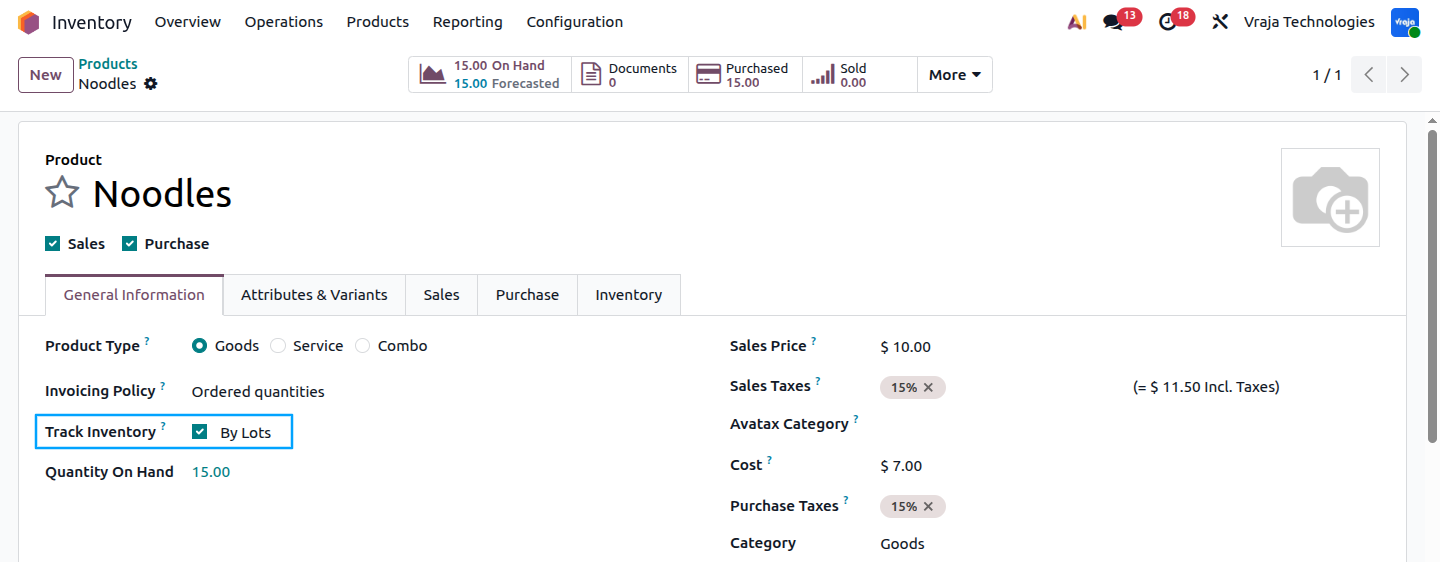 (image :- tracking_config.png)
Go to the Inventory tab, scroll to the Traceability section, and tick Expiration Date.
Set the day offsets for Expiration, Best Before, Removal, and Alert dates (relative to the receipt date). These offsets apply the same way whether the product is tracked by lot or by serial number.
Optionally, under the Logistics section, assign a Responsible user — this person gets notified when a lot's or serial's expiration date is reached.
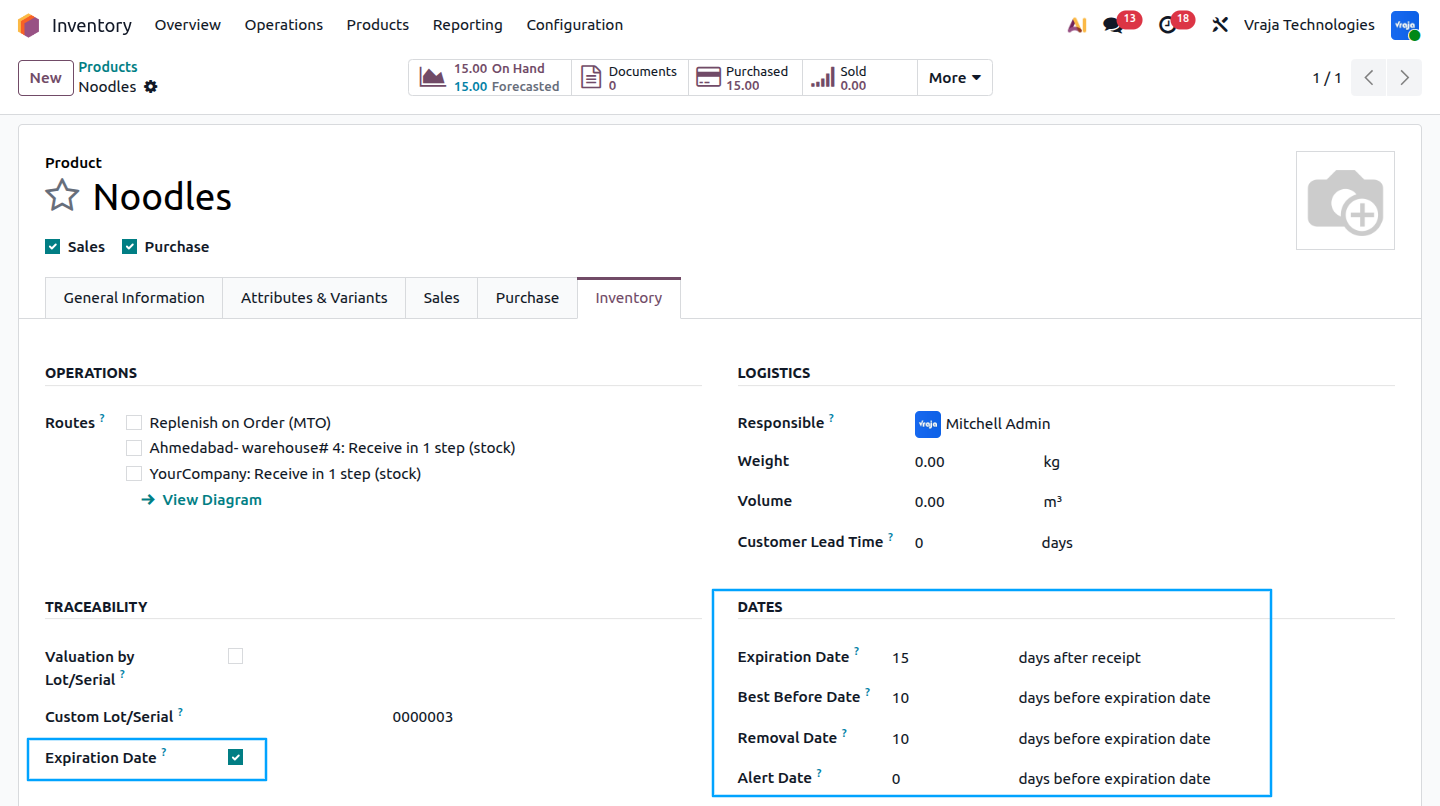 (image :- exp_config.png)
Step 4: Set the Removal Strategy to FEFO
FEFO needs to be explicitly set — enabling expiration dates alone does not activate it.
You can set this at two levels:
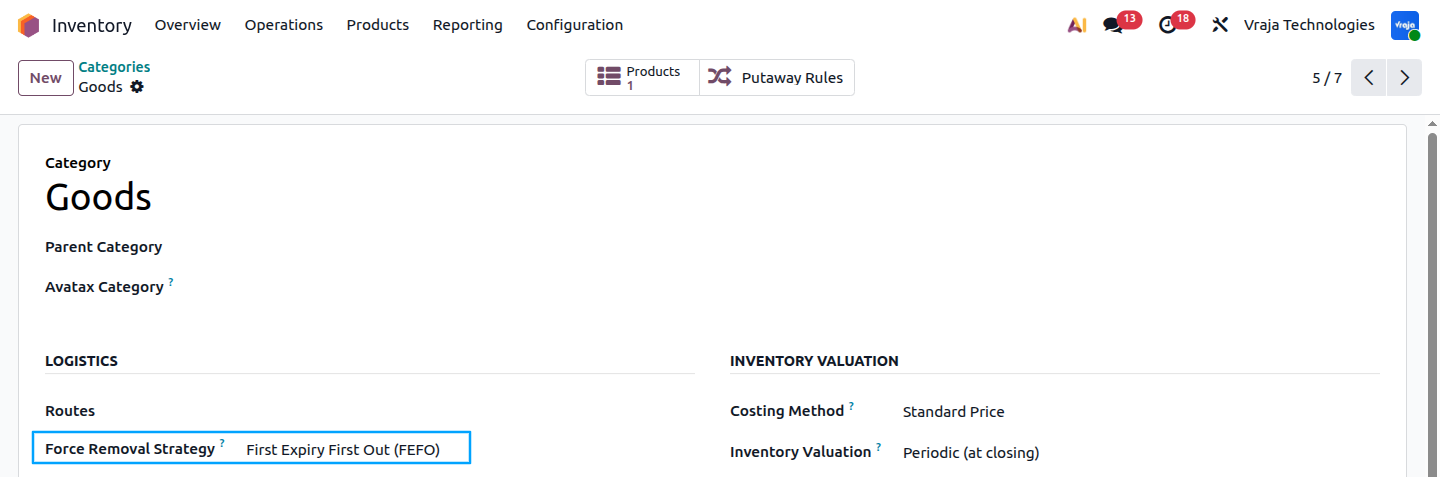 (image :- category_config.png)
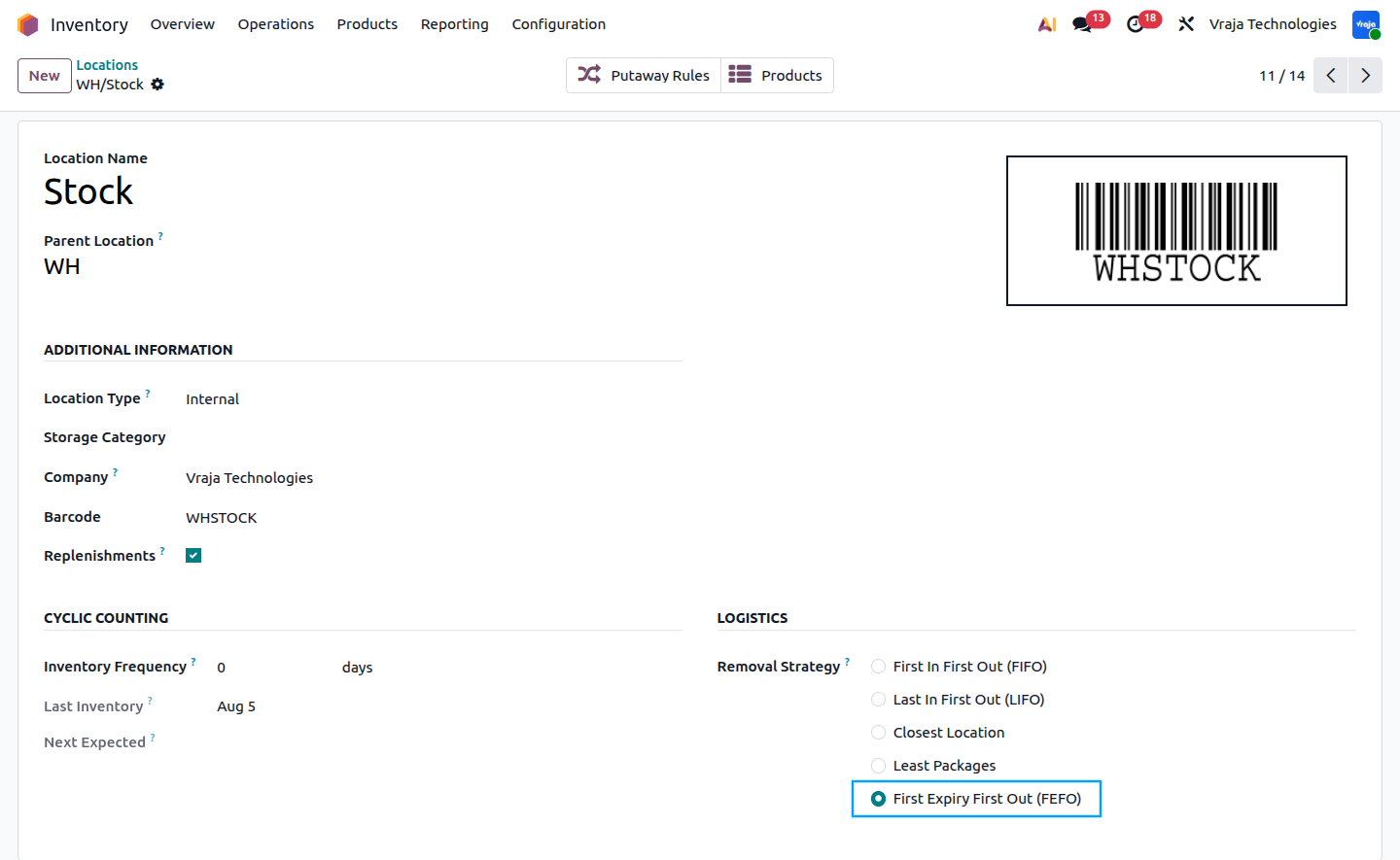 (image :- location_config.png)
-> Step-by-Step Process Flow
Step 1: Receiving Stock (Assigning a Lot/Serial Number)
When a Purchase Order is confirmed and the resulting receipt is validated (manually or via the Barcode app), Odoo prompts for a Lot/Serial Number on each tracked product line.
Enter or scan the lot/serial number, or use Generate Serials/Lots to auto-generate identifiers (or Import Serials/Lots to bring in existing ones). If Expiration Dates are enabled, Odoo will calculate the Expiration Date and Removal Date automatically based on the offsets configured on the product, using the receipt date as the starting point.
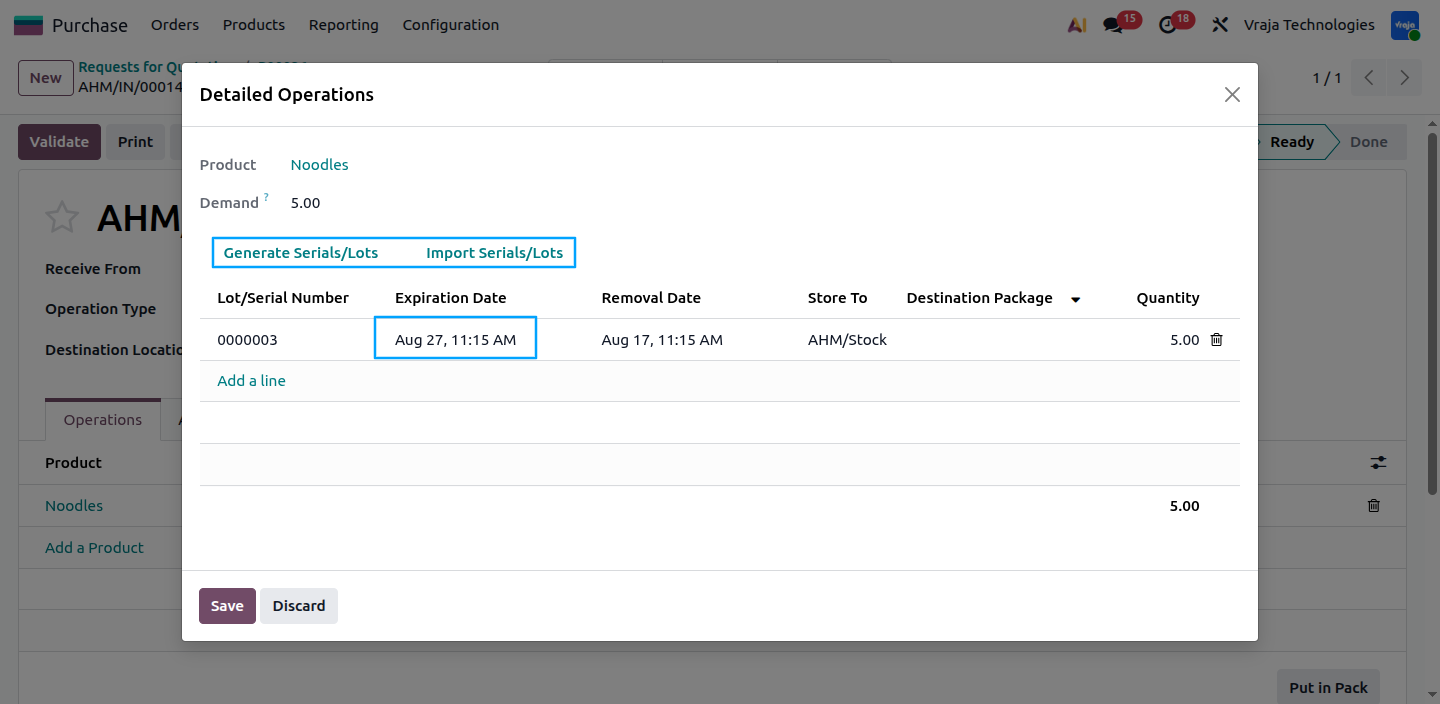 (image :- lot_generation.png)
If the product is tracked by unique serial numbers, you must generate a unique serial number for each unit of product quantity, as shown in the image below.
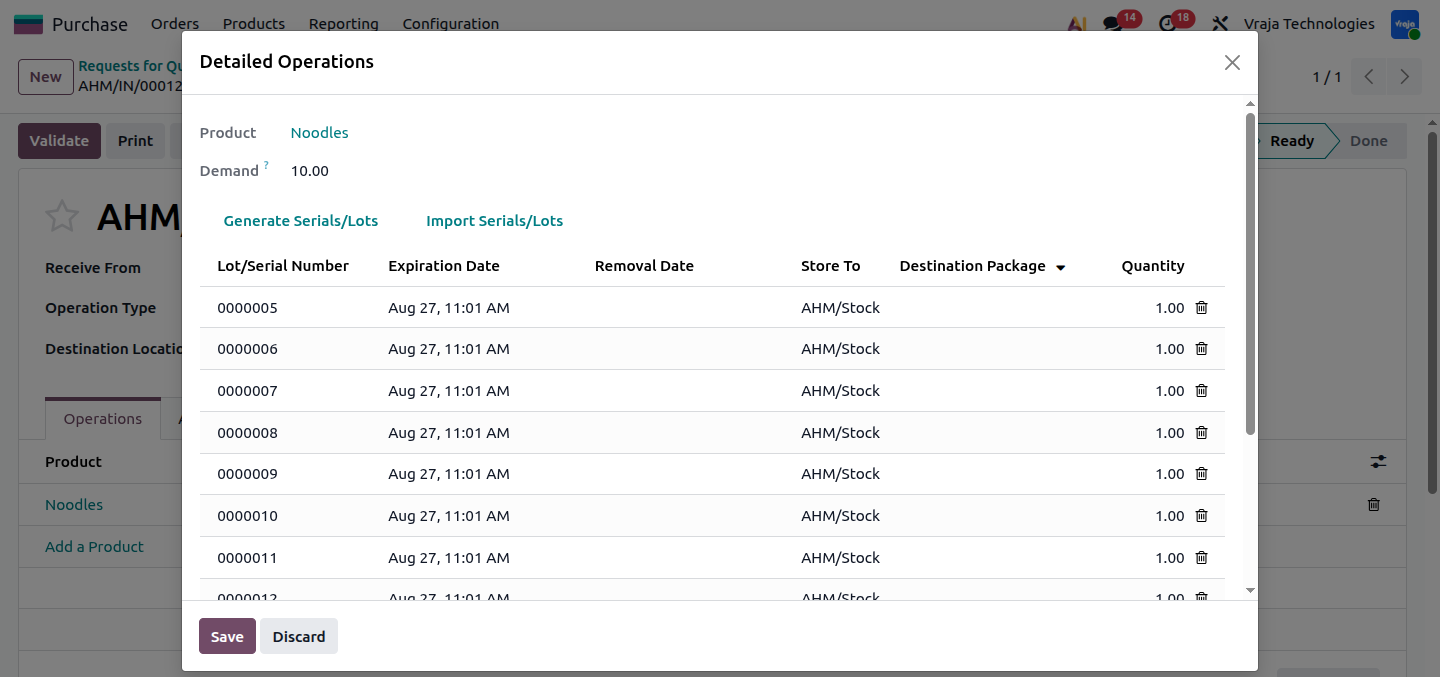 (image :- serial_exp.png)
Step 2: Odoo Tracks Each Lot/Serial Independently
Each lot or serial number now exists as its own record. You can view them at:
From here, you can filter or group by Location or Expiration Date to see which batches (or individual serials) are closest to expiring.
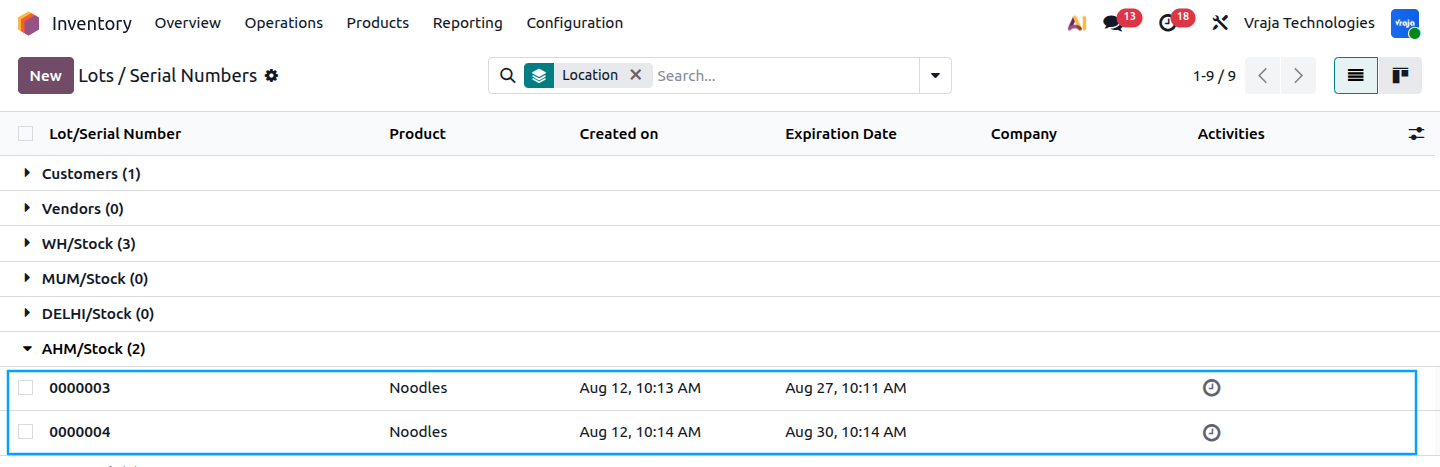 (image :- lot_exp.png)
Step 3: Fulfilling a Sales Order (FEFO in Action)
When a Delivery Order is created for a tracked product, and the source location's removal strategy (or the product category's Force Removal Strategy) is set to FEFO:
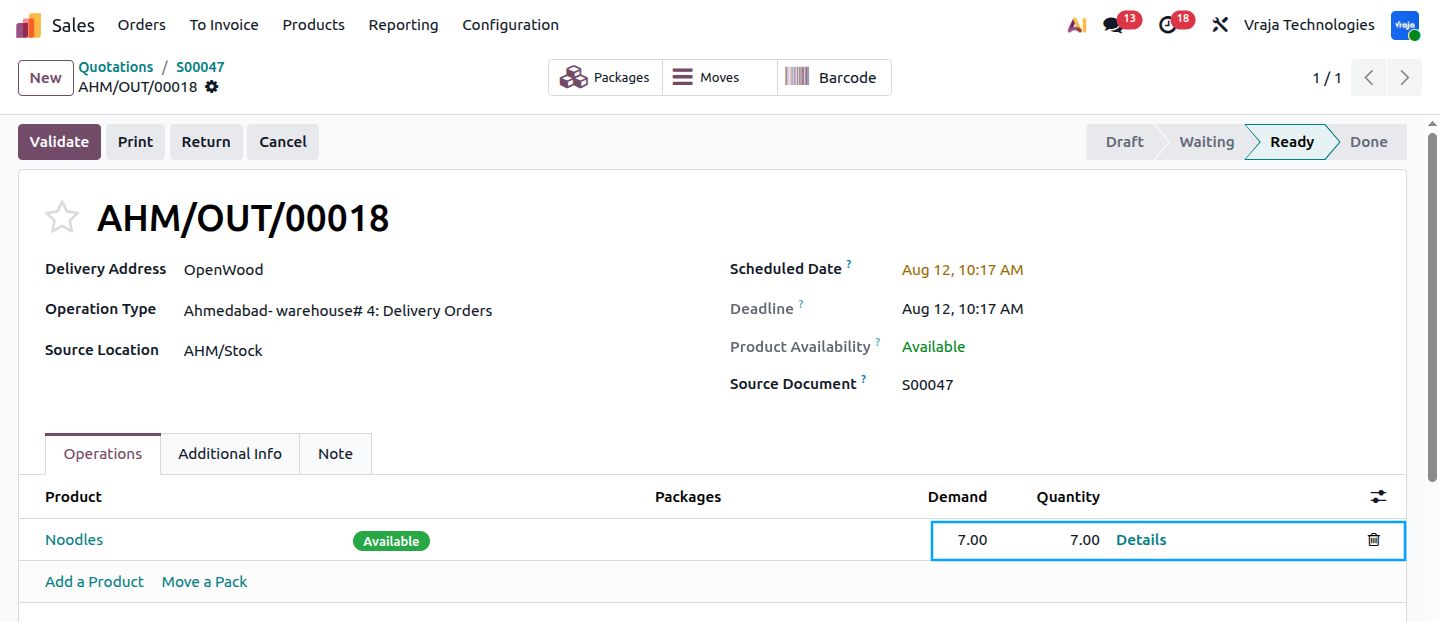 (image :- do.png)
Odoo automatically selects the lot or serial with the nearest expiry date first. If that lot/serial doesn't have enough quantity to fulfill the full order, Odoo automatically pulls the remaining quantity from the lot/serial with the next-soonest expiry date, continuing until the order is fully allocated. This happens automatically — no manual selection is required from the warehouse employee, though it can be manually overridden if needed by opening the Details view on the delivery line.
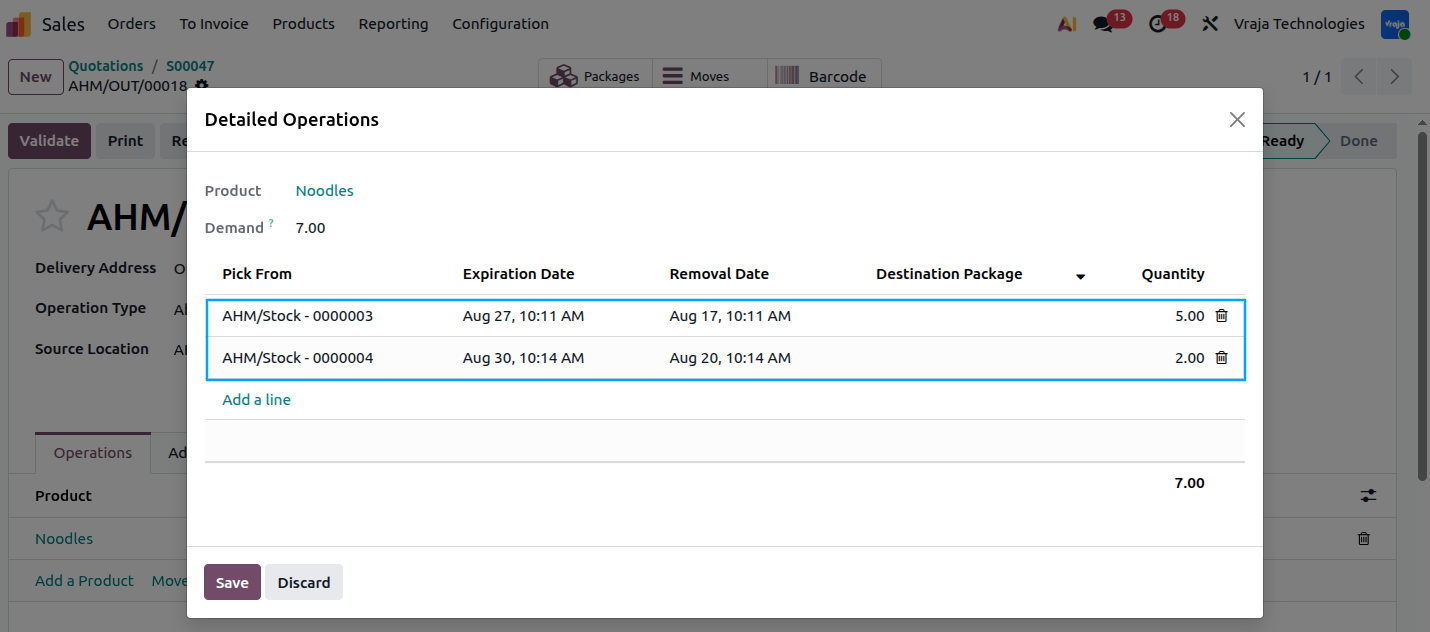 (image :- do_exp.png)
Step 4: Expiration Alerts
Once a lot's or serial's Alert Date is reached, Odoo raises an activity/alert on that record, and the Responsible user configured on the product is notified.
To review all upcoming/active expiration alerts:
This gives a full breakdown of every batch or serial, its expiration date, and its identifier — useful for proactively discounting, returning, or disposing of stock before it expires.
Step 5: Recall / Traceability (if needed)
If a defective or recalled batch (or a specific serialized unit) needs to be traced, lot/serial tracking allows you to:
Search by lot/serial number, receipt date, or component batch to identify all affected units.
Use the lot's or serial's traceability report to see every operation it was involved in — receipts, internal transfers, and customer deliveries.
Identify exactly which customers received stock from the affected lot or which customer received a specific serialized unit.
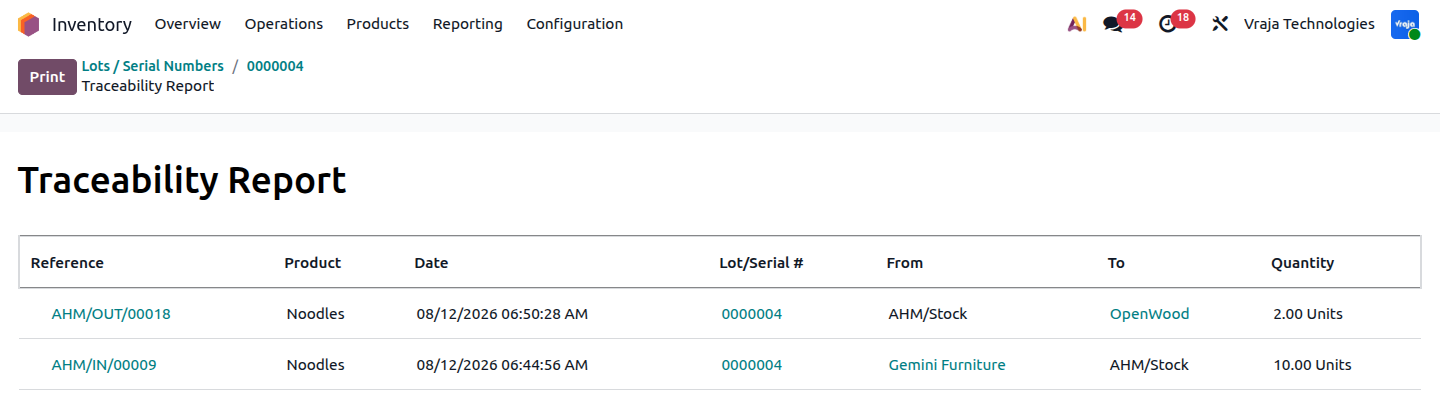 (Image :- Traceability.png)
Summary
The overall flow is:
FEFO only works when three things are true together: the product is tracked by lot or serial number, expiration dates are enabled and configured on that product, and a removal strategy of FEFO is explicitly set on the category or location. Missing any one of these means Odoo will fall back to its default removal behavior instead of prioritizing expiring stock.