





Odoo Three-Step-Delivery Workflow
Many companies handle a high volume of daily deliveries, often involving multiple products or special packaging requirements. To streamline this process, a dedicated packing step is essential before goods are shipped out. Odoo addresses this need with its three-step delivery process, designed to keep high-volume fulfillment organized and efficient.
In this default workflow, products included in a delivery order are first picked from the warehouse based on the configured removal strategy and moved to a designated packing zone. Once items are packed into their respective shipments, they are transferred to an output location before final shipping. This three-step process is fully customizable, allowing businesses to adapt each stage to match their specific operational needs.
Configuration Required :-
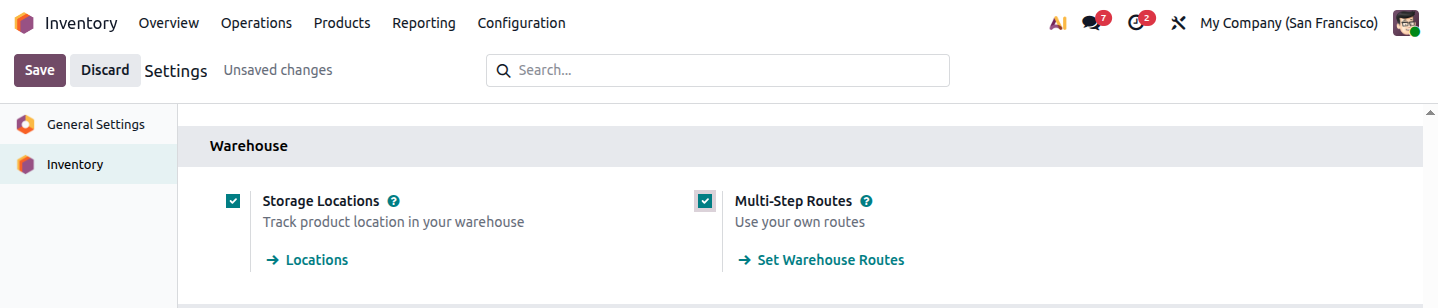 Image :- config.png
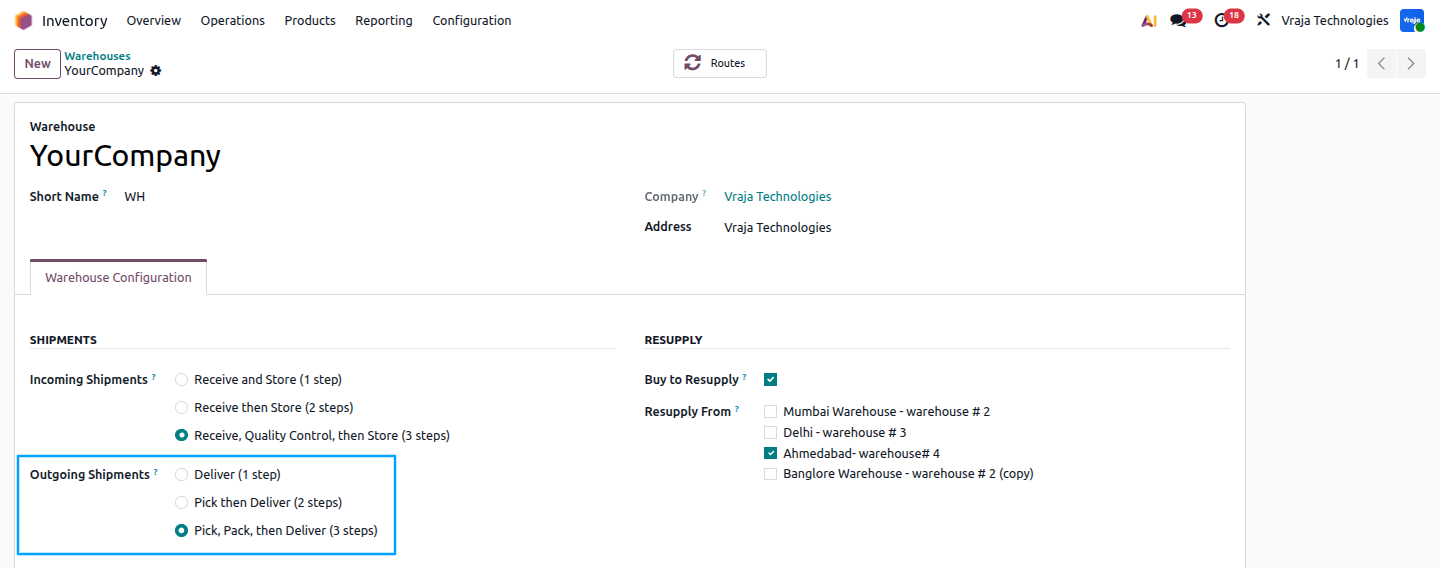 Image :- wh_config.png
When the three-step receipt and delivery workflow is enabled, Odoo automatically creates additional internal locations, including e.g..( Receive in 3 steps (input + quality + stock) and Deliver in 3 steps (pick + pack + ship)), you can modify there name according to you.
Deliver in three steps (pick + pack + ship) :-
Start by creating a new quotation from Sales > Orders > Quotations > New . Select the Customer, add the required storable Product, and then confirm the quotation to create the sales order.
After confirmation, a Delivery smart button becomes available on the sales order. Open it to view the delivery operation, where Odoo prepares the product movement from WH/Stock to WH/Packing Zone as the first stage of the three-step delivery process.
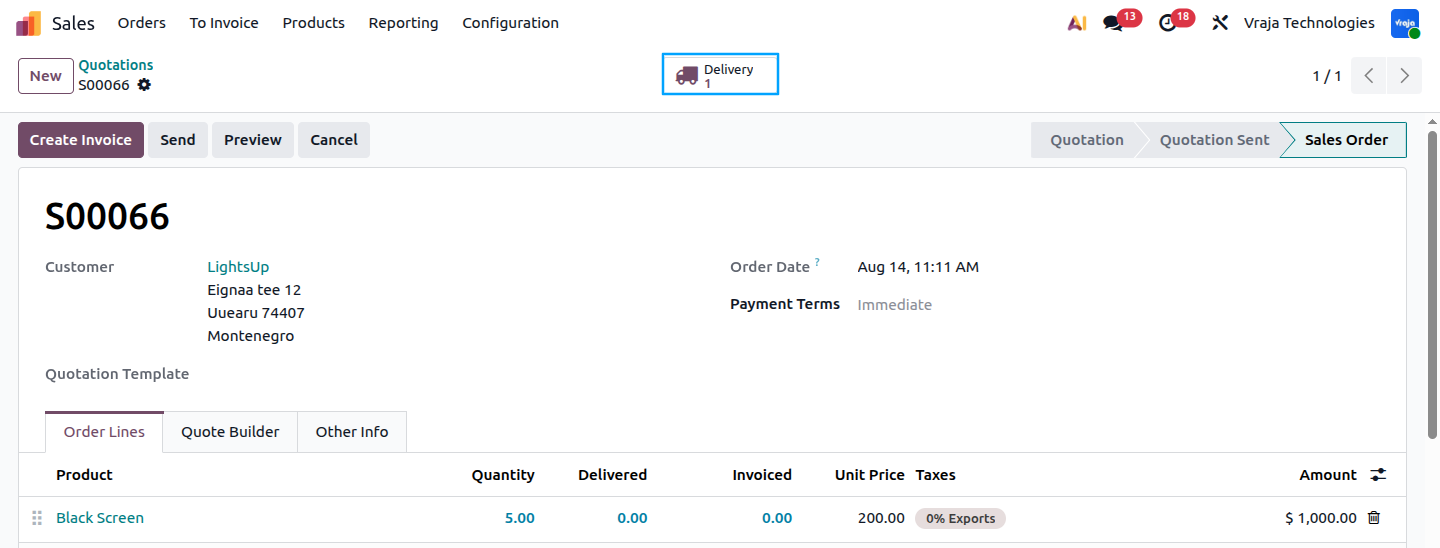 Image :- SO.png
Example :- This step is where the delivery process actually gets triggered. Once quotation S00066 (customer LightsUp, product Black Screen) is confirmed into a sales order, Odoo automatically generates the linked delivery operation behind the scenes, shown here as the Delivery smart button with 1 operation waiting to be processed.
Move Products to the Packing Area :-
After confirming the sales order, Odoo generates a picking operation for the delivery. Open the Inventory application and locate the Pick operation from the Inventory Overview.
Select To Process to find the picking associated with the sales order. Open the required operation and review the product quantities. When sufficient inventory is available, Odoo reserves the required products automatically.
Once everything is verified, select Validate to complete the operation. Odoo then records the movement of the products from WH/Stock to WH/Packing Zone, completing the picking stage of the delivery workflow.
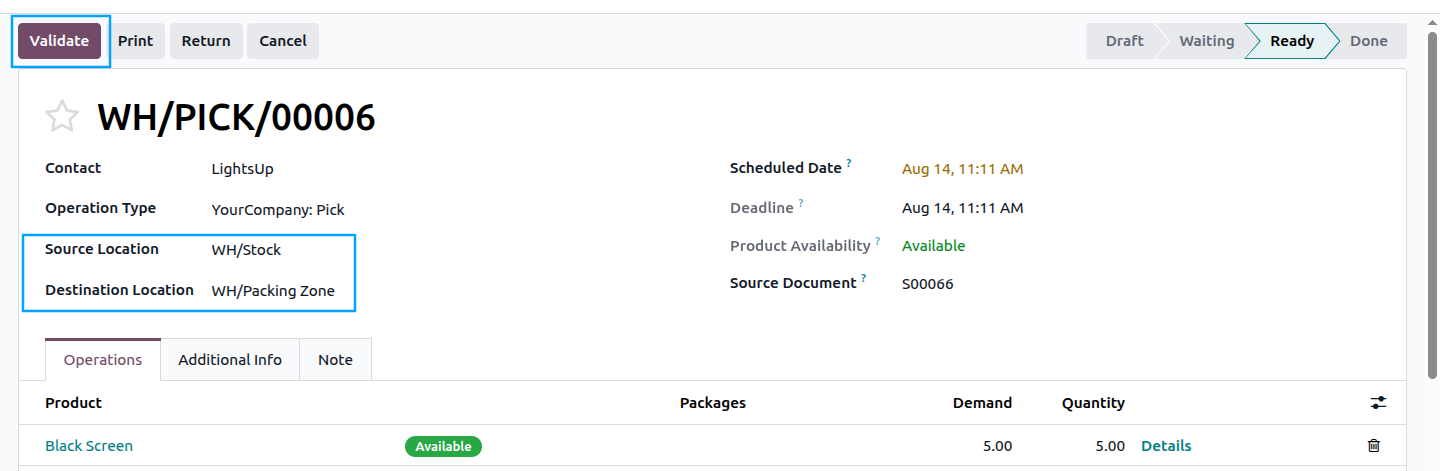 Image :- picking.png
Example :- This is the picking stage - where the warehouse team gathers the ordered product from stock before it can be packed. Transfer WH/PICK/00006 moves product Black Screen from WH/Stock to WH/Packing Zone. Odoo shows it as Available (5.00 out of 5.00 reserved), so the picker can safely click Validate to physically move the item into the packing zone.
Complete the Packing Operation
Once the picking stage is validated, the products become available for the next stage: packing. Return to the Inventory Overview and open the Pack operation.
Select # To Process to view the packing operations that are ready for processing. Find the operation linked to the relevant sales order and open it.
Review the packing details and click Validate to confirm the operation. Odoo then records the products as packed and moves the workflow to the WH/Output stage.
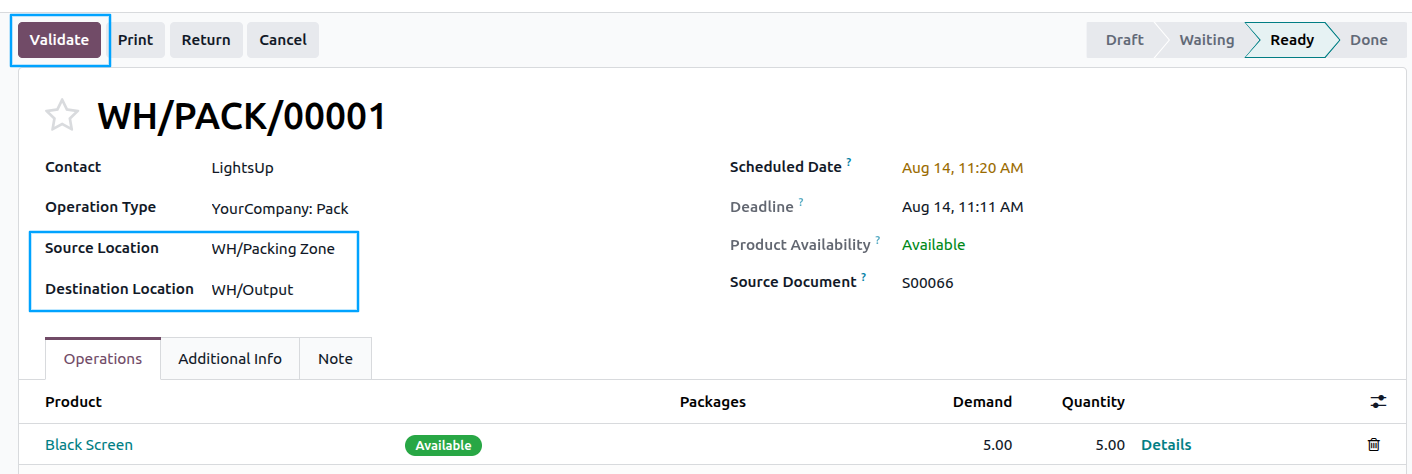 Image :- packing.png
After the packing operation is validated, Odoo moves the products from WH/Packing Zone to WH/Output. The transfer is then marked as Done, indicating that the packing stage has been successfully completed.
Example :- This is the packing stage - where the product picked in the previous step actually gets boxed/packed for shipment. Transfer WH/PACK/00001 moves Black Screen from WH/Packing Zone to WH/Output. Validating this transfer confirms the item has been packed and is now staged at the output area, ready for dispatch.
Complete the Final Delivery :-
After the packing operation is completed, the order moves to the final delivery stage. Return to the Sales application and open the previously confirmed sales order.
From the sales order, open the Delivery smart button to access the corresponding delivery operation. This operation represents the final step in the three-stage delivery workflow.
The Delivery smart button now displays three related operations:
1. Pick – The picking operation is marked as Done.
2. Pack – The packing operation is also marked as Done.
3. Delivery – The final delivery operation is in the Ready state and is ready to be processed.
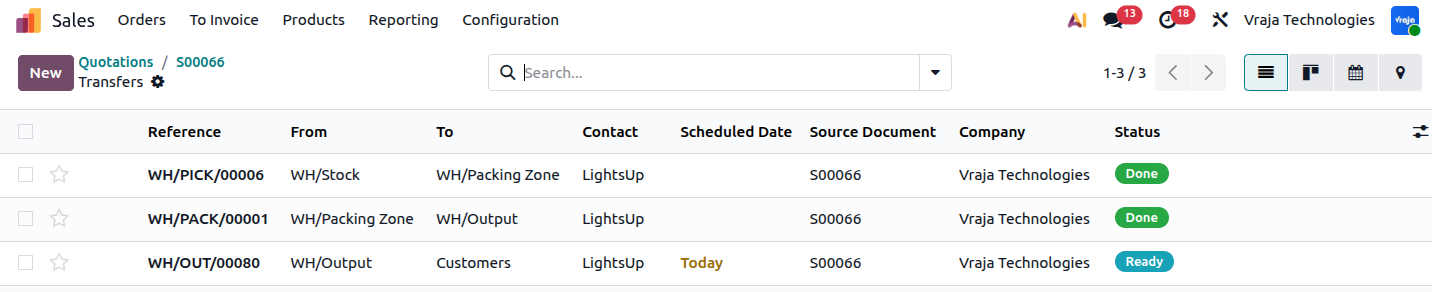 Image :- DO.png
Example :- This view is a quick way to track overall progress of the order at a glance. For S00066, WH/PICK/00006 and WH/PACK/00001 both show Done, confirming picking and packing are finished, while WH/OUT/00080 shows Ready - meaning the product is now waiting only for final dispatch to the customer.
Open the Delivery operation and verify the product and quantity. Click Validate to complete the transfer. Odoo then moves the products from WH/Output to the Customer location, marking the delivery as Done and completing the three-step delivery process.
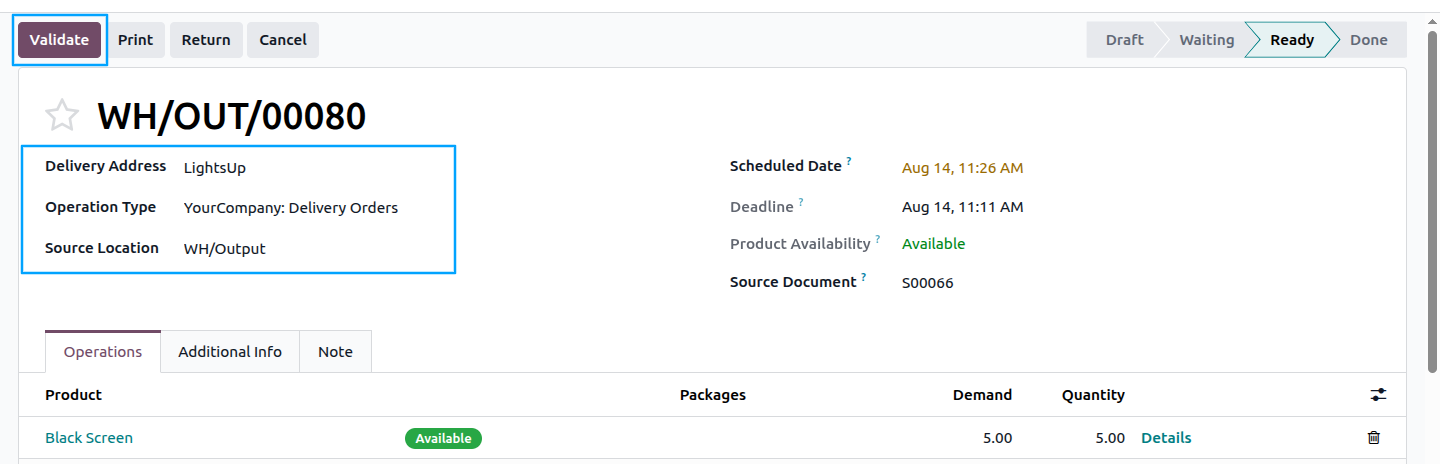 Image :- do_validate.png
Summary :-
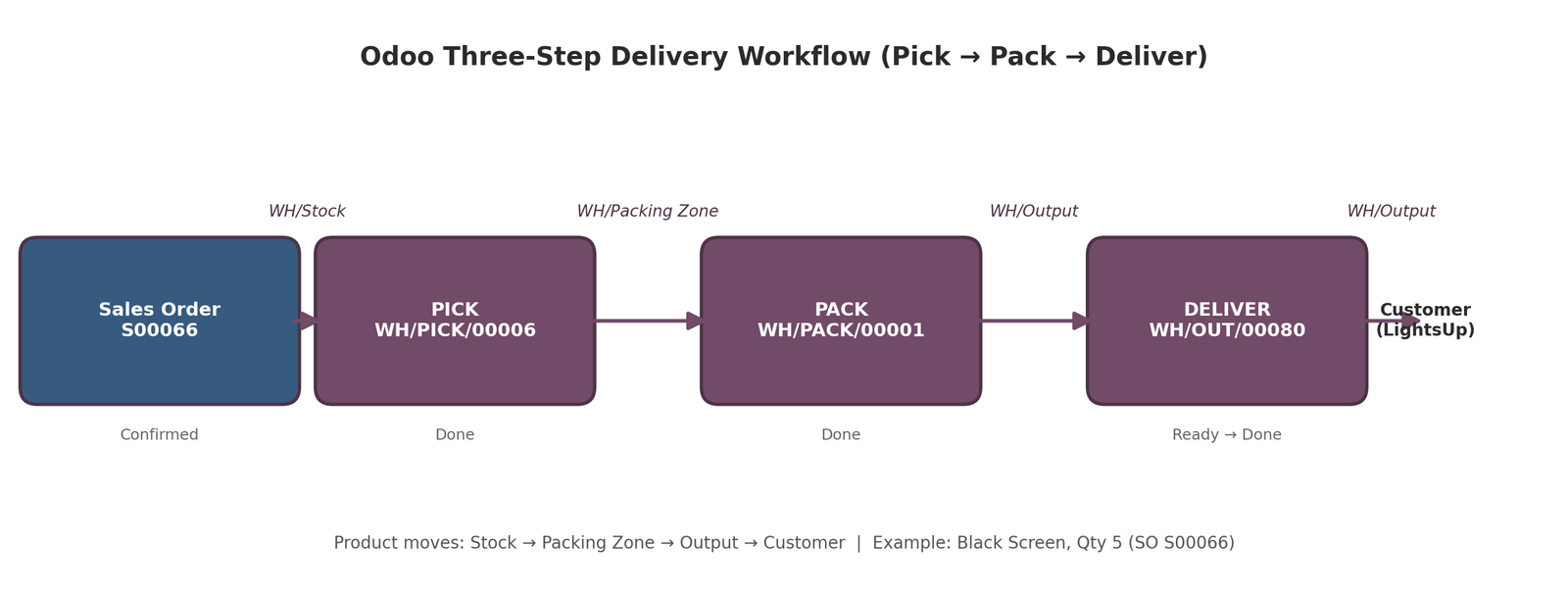 Image :- summary.png
SEO Section
Meta Title : "Odoo Three-Step Delivery Process"
Meta Description : Learn how Odoo's three-step delivery process streamlines picking, packing, and shipping for businesses managing high-volume, multi-product orders.
Target Keywords:
Odoo three-step delivery
Pick, Pack, Ship
Odoo delivery process
warehouse picking and packing
Odoo packing zone
Odoo shipping workflow
multi-step delivery process
Odoo inventory management
removal strategy Odoo
warehouse fulfillment process
Odoo output location