





Warehouse Locations and Routes (Stock Movement Configuration) in Odoo
Overview
Locations and Routes together define how Odoo tracks and moves stock through a warehouse. Locations are the physical or logical points where a product can sit — received, on a shelf, staged for dispatch, ready to ship. Routes are the automatically generated pathways that connect these locations, so Odoo knows exactly how a product should move from receipt to delivery without every movement being decided manually. Each route runs on Rules — the individual instructions that actually carry out the movement.
This is essential for understanding how any warehouse — single-step or multi-step — moves inventory behind the scenes, and for customizing that movement later if the business process changes.
Part 1: Locations & Routes Setup
Step 1: Review Auto-Created Locations
When a warehouse is created, Odoo automatically generates several internal locations to represent different physical or logical areas — a stock area, an input/receiving area, and any shelf or zone-level sub-locations configured under it. These let Odoo track exactly where a product is, not just that it's "in the warehouse" — whether it's waiting to be processed, stored on a specific shelf, or staged for dispatch.
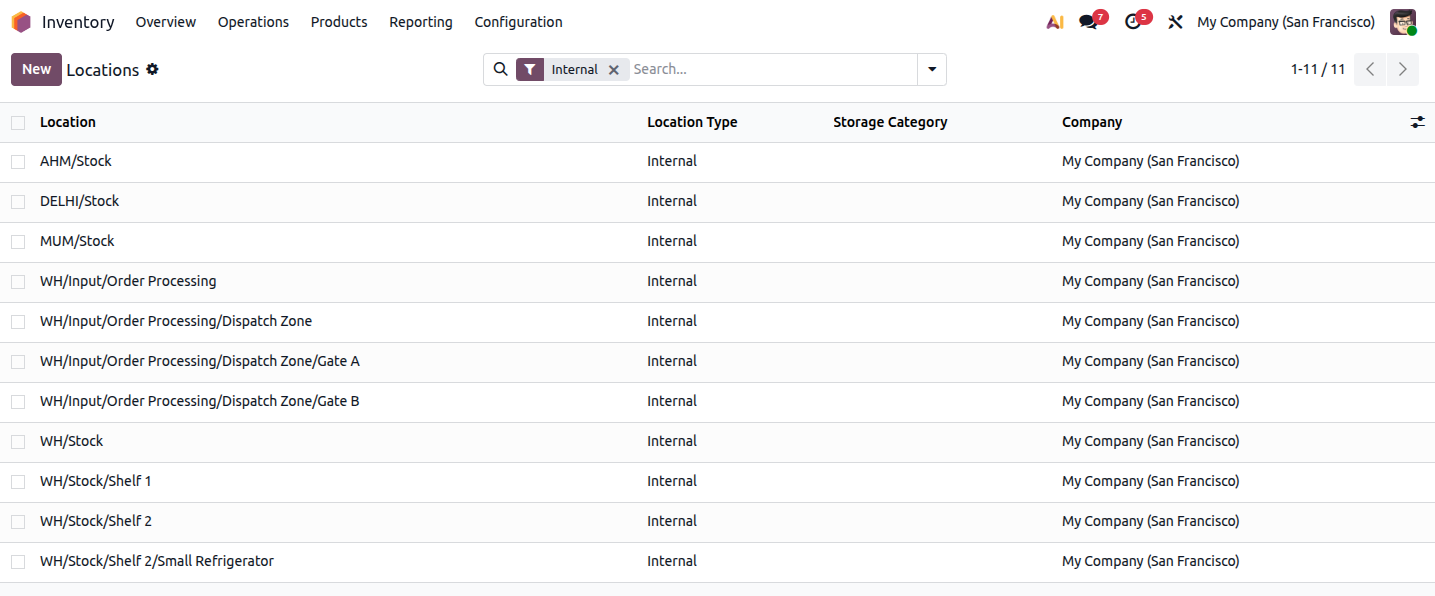 (image :- locations_list.png)
Locations currently configured in the system:
AHM/Stock, DELHI/Stock, MUM/Stock — main stock location per warehouse
WH/Input/Order Processing — incoming goods staging area
Dispatch Zone → Gate A, Gate B — outgoing dispatch sub-locations
WH/Stock → Shelf 1, Shelf 2 — shelf-level storage
Shelf 2 → Small Refrigerator — specific storage spot under Shelf 2
Step 2: Review Auto-Created Routes
Routes define how a product moves into and out of a warehouse, so movement doesn't need to be decided manually every time. Routes are created automatically the moment a warehouse is created.
For example, stock received from a supplier follows the Receive in 1 Step route, and a customer order follows the Deliver in 1 Step route. If a warehouse is later reconfigured to a 2-Step or 3-Step workflow, Odoo automatically adds the matching routes.
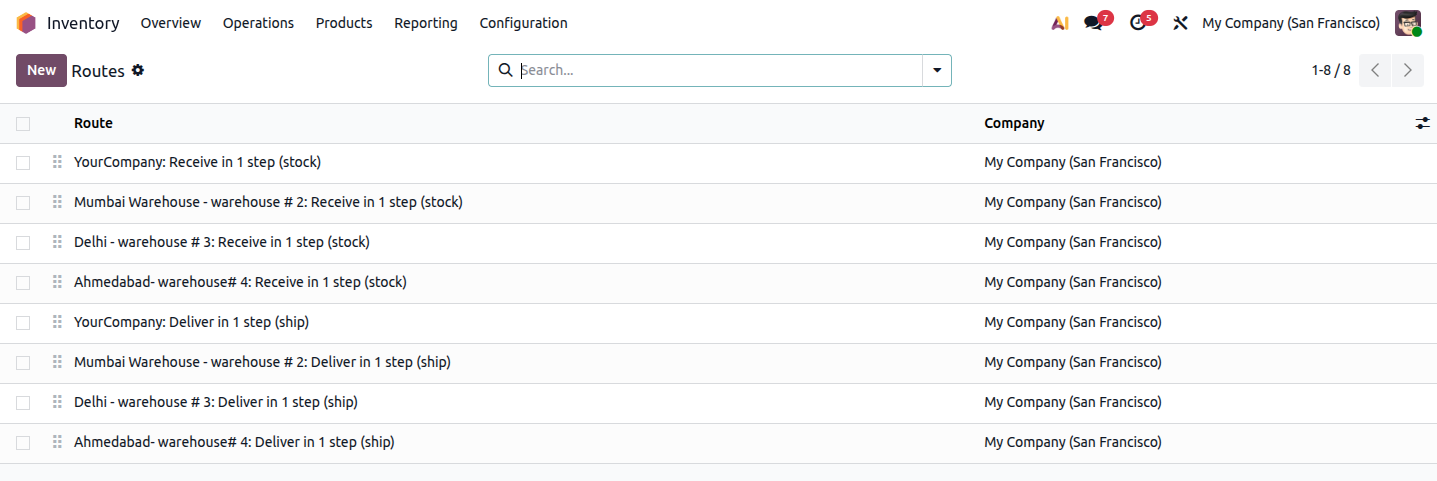 (image :- routes_list.png)
We have configure the routes according to our requriements, you can configure the warehouse routes base on your business needs:
YourCompany: Receive in 1 step (stock) / Deliver in 1 step (ship)
Mumbai Warehouse - warehouse # 2: Receive in 1 step (stock) / Deliver in 1 step (ship)
Delhi - warehouse # 3: Receive in 1 step (stock) / Deliver in 1 step (ship)
Ahmedabad- warehouse# 4: Receive in 1 step (stock) / Deliver in 1 step (ship)
Part 2: Route & Rule Breakdown
Step 1: Verify the Receive Route
Open: Ahmedabad- warehouse# 4: Receive in 1 step (stock)
This route defines how products are received into the warehouse and where they land once received.
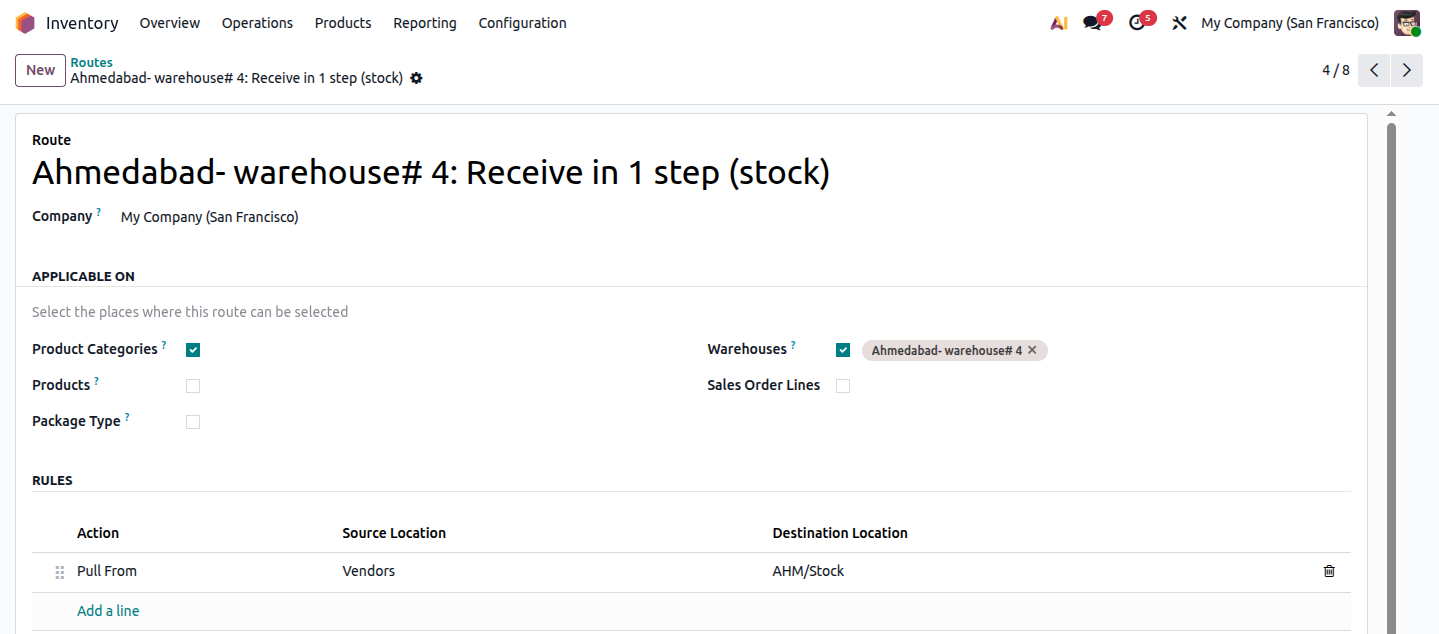 (image :- receive_route.png)
Review the following information:
fields						|	Value
________________________|_____________________________________________________
Route Name					|	Ahmedabad- warehouse# 4: Receive in 1 step (stock)
Applicable Warehouse		|	Ahmedabad- warehouse# 4
Rule							|	Pull From — Vendors → AHM/Stock
Source Location			|	Vendors
Destination Location		|	AHM/Stock
Step 2: Verify the Deliver Route
Open: Ahmedabad- warehouse# 4: Deliver in 1 step (ship)
This route defines how products are shipped from the warehouse to the customer. Odoo delivers directly from Stock to the customer, without any additional picking, packing, or staging step — ideal for a straightforward shipping process.
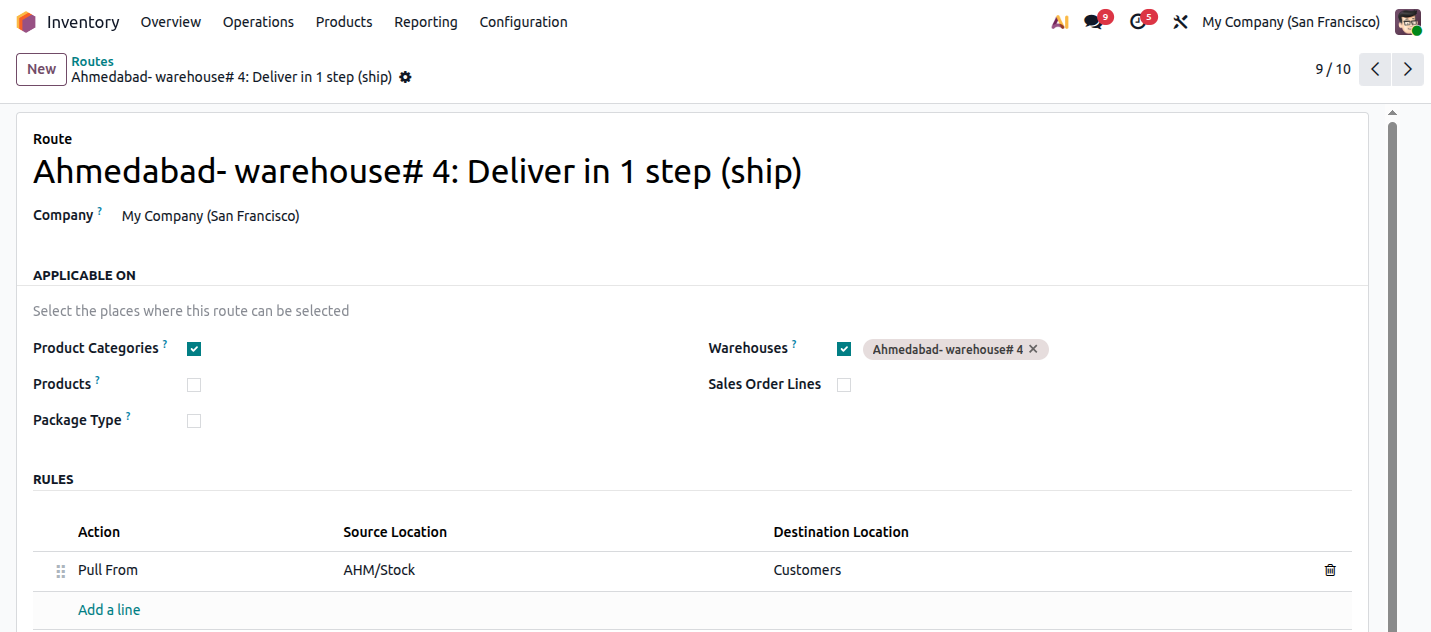 (image :- deliver_route.png)
Review the following information:
Field							|	Value
________________________|_____________________________________________________
Route Name					|	Ahmedabad- warehouse# 4: Deliver in 1 step (ship)
Applicable Warehouse		|	Ahmedabad- warehouse# 4
Rule							|	Pull From — AHM/Stock → Customers
Source Location			|	AHM/Stock
Destination Location		|	Customers
Step 3: Understand What a Rule Is
A Route is really just a container — the actual movement logic lives inside its Rules. Each rule is a single instruction that tells Odoo: "when stock is needed/received here, move it from this location to that location, using this method." A 1-Step route has one rule; a 3-Step route has three rules chained together, each handing off to the next.
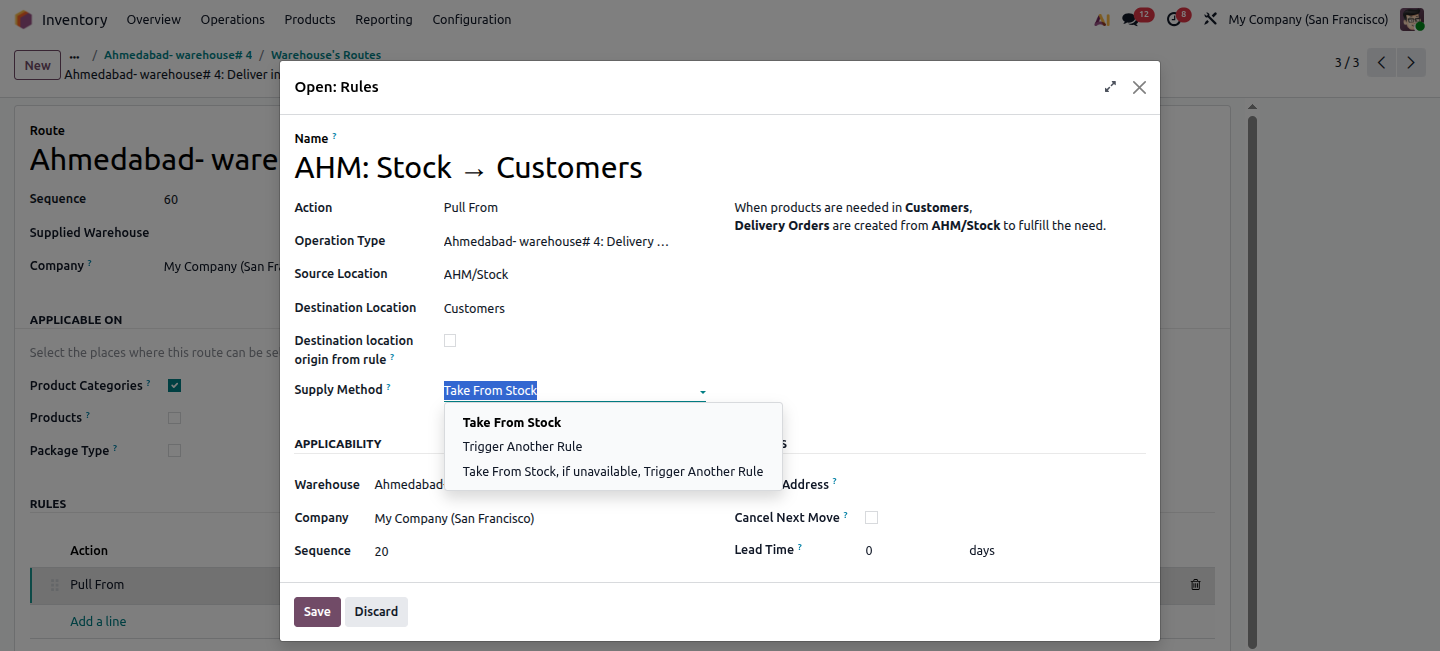 (image :- rule_detail.png)
When you open a rule, you see its full configuration:
Core Fields are :-
Name
Auto-generated to describe the movement, e.g. "AHM: Stock → Customers" — shows the source and destination at a glance.
Action
Defines how the rule triggers stock movement. The main options are:
In the image, the action is Pull From — meaning this rule fires because Customers need stock, and it pulls that stock from AHM/Stock.
Operation Type
The type of document Odoo will generate to record this movement — e.g., "Ahmedabad Warehouse: Delivery Orders" or "Receipts." This determines which stock document (Delivery Order, Receipt, Internal Transfer) gets created when the rule runs.
Source Location
Where the product is taken from (e.g., AHM/Stock).
Destination Location
Where the product is sent to (e.g., Customers).
Supply Method
How the stock is sourced — see Step 4 below.
Step 4: Supply Method — 3 Options
Take From Stock — Odoo takes the product straight from the source location's on-hand inventory. Simplest option; if stock isn't available, the transfer stays stuck waiting. This is what the AHM: Stock → Customers rule currently uses.
Trigger Another Rule — skips checking on-hand stock entirely and always creates the next linked movement (e.g. an internal transfer or a vendor receipt). Used when a location is only ever a pass-through point and should never hold stock on its own.
Take From Stock, if Unavailable, Trigger Another Rule — a hybrid of the two: uses on-hand stock when available, and automatically falls back to the next rule when it isn't. Most flexible option.
Step 5: Route Configuration in Product
Routes can be assigned directly to individual products. This allows Odoo to apply a specific inventory movement flow to a product instead of relying only on the warehouse's default routes.
In the Operations section, configure the Routes field.
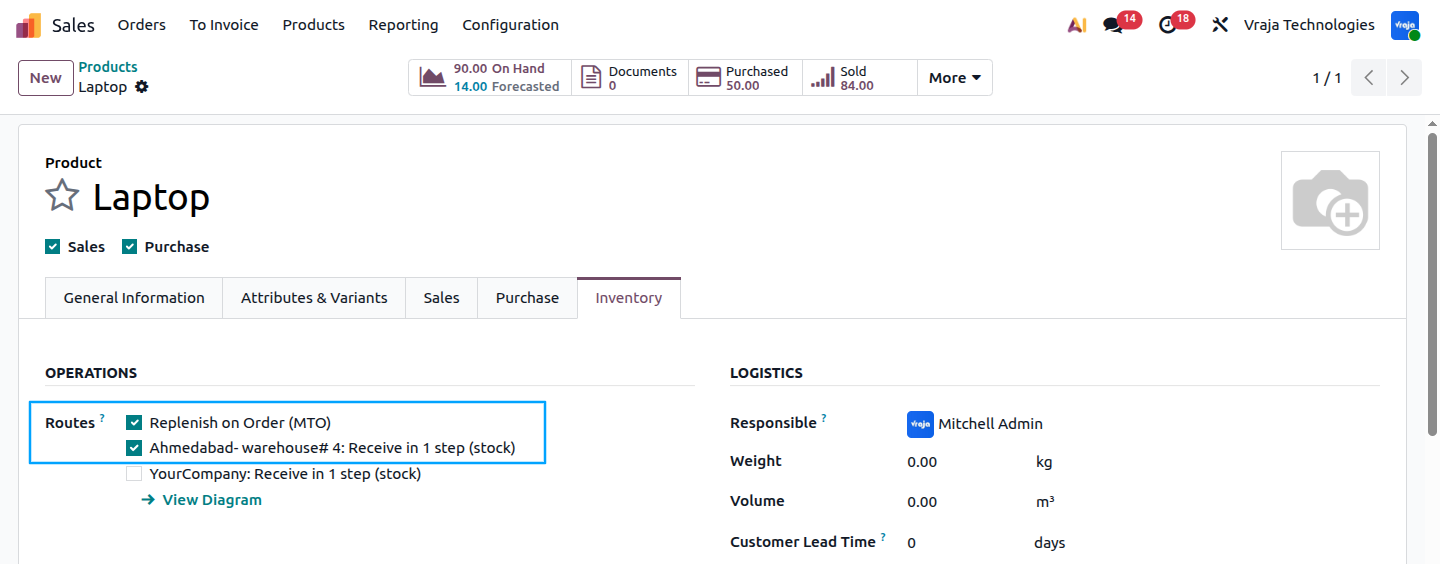 (image :- product_route_configuration.png)
For example, if the Ahmedabad Warehouse uses the Deliver in 1 Step route, you can assign this route to a product so Odoo knows that the product should be delivered directly from AHM/Stock → Customers.
Product-level route configuration is useful when a specific product requires a different stock movement process from the warehouse's standard flow. Odoo uses the selected route and its rules to determine how that product should move between locations.
Step 6: How It Works (Example)
When a customer confirms a sales order, Odoo automatically creates a Delivery Order. On validation, the product moves directly from AHM/Stock to the Customer Location, completing the shipment in a single operation.
Example: A customer in Ahmedabad orders 10 laptops. Since Ahmedabad Warehouse has sufficient stock, Odoo ships directly from AHM/Stock to the customer — no intermediate picking or packing step, enabling faster order fulfillment.
Summary
The overall flow is:
Routes and their step count (1 / 2 / 3) are determined entirely by how each warehouse's reception and delivery settings are configured. Odoo keeps Locations, Routes, and Rules in sync automatically whenever that configuration changes — no manual movement setup is required unless the default flow needs to be customized.