





How to Automate WooCommerce Order Processing With an ERP
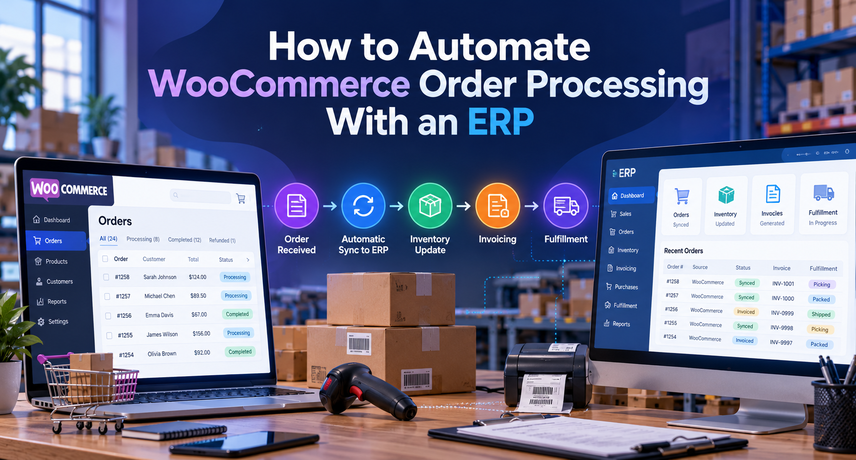
To automate WooCommerce order processing, connect your store to an ERP so each new order moves into the ERP by itself, stock counts flow back to the store, and invoices and tracking numbers are created without anyone typing them. That connection is called WooCommerce ERP integration.
Without WooCommerce ERP integration, your team copies orders by hand, checks stock in spreadsheets, and pastes tracking numbers one at a time. With a connected WooCommerce ERP, the order, payment, stock, invoice, and shipment all move through one system. This guide explains how ERP integration with WooCommerce works, which data to sync, how to set it up step by step, and what to watch for. WooCommerce order automation is the goal, and the integration is how you get there. Vraja Technologies builds these connections for Odoo, and the Odoo steps below follow how its connector works.
What Is WooCommerce ERP Integration?
WooCommerce ERP integration is a link between your WooCommerce store and your ERP that shares orders, stock, customers, and shipping data automatically. The store handles selling. The ERP takes over WooCommerce order management and everything behind the sale: stock, purchasing, accounting, and fulfillment. Put simply, ERP integration with WooCommerce means your store and your back office share one set of facts.
A few plain definitions help before we go further:
- ERP (enterprise resource planning): software that runs stock, accounting, purchasing, and sales in one place. Odoo, NetSuite, and Microsoft Dynamics 365 are examples.
- API: a set of rules that lets two programs talk to each other. WooCommerce has a REST API.
- Webhook: an automatic message WooCommerce sends the moment something happens, such as a new order.
- SKU: the unique code for each product. It is the key that matches products in both systems.
- Source of truth: the system whose data wins when the two systems disagree.
A full WooCommerce ERP setup is more than a plugin that copies stock numbers. A good WooCommerce ERP system covers the whole life of an order, from checkout to delivery to refund.
Why Does WooCommerce Order Management Break Down Without an ERP?
WooCommerce order management breaks down because WooCommerce was built to sell, not to run stock, purchasing, and accounting. It records orders well. It does not plan purchases, track stock across several warehouses, or post entries to a general ledger on its own.
Pressable and Webkul both describe the same pattern: as a store grows, manual entry, stock mismatches, and slow fulfillment grow with it. That is why ERP integration with WooCommerce is the next step for growing stores. Here are five warning signs that your WooCommerce order management needs help:
- You sell items that are already out of stock.
- Someone retyped orders from WooCommerce into another system.
- Invoices go out days after the order.
- Customers ask where their package is, and the answer sits in a different tool.
- Stock counts in your store, your warehouse, and your books do not match.
If two or more of these sound familiar, your order flow is ready for WooCommerce ERP integration. Better WooCommerce order management starts by removing these hand-offs, and that is where WooCommerce order automation pays off.
What Does WooCommerce Order Automation Look Like Step by Step?
The automated order flow in WooCommerce ERP integration, step by step
| # | Step | What the system does | Without automation |
|---|---|---|---|
| 1 | Order placed | WooCommerce saves the order and sends a webhook | Staff checks the admin screen for new orders |
| 2 | Order imported | The ERP creates a sales order and matches or creates the customer | Staff retypes the order |
| 3 | Payment matched | The ERP creates the invoice and records the payment | Staff updates the books later |
| 4 | Stock reserved | The ERP reserves stock and updates what is available | Someone checks a spreadsheet |
| 5 | Packed and shipped | The ERP prints the pick list, packing slip, and label | Staff copies details between tools |
| 6 | Tracking sent back | The ERP sends the tracking number to WooCommerce and marks the order complete | Staff pastes the tracking number into the order |
| 7 | Refund or cancel | A credit note in the ERP triggers the refund in WooCommerce | Staff does the same job twice |
Here is a simple example. A store gets 40 orders a day, and each takes about six minutes to retype, invoice, and update. That is four hours of typing every day. With WooCommerce ERP integration, the team only handles the exceptions, such as a damaged item or an address problem. That is what WooCommerce order automation is for.
Which Data Should Sync in a WooCommerce ERP Integration?
What to sync in WooCommerce ERP integration, which way, and who is the source of truth
| Data | Direction | Typical timing | Source of truth |
|---|---|---|---|
| Orders | WooCommerce to ERP | Instant, by webhook | WooCommerce until imported, then the ERP |
| Inventory | ERP to WooCommerce | Every few minutes or on each stock move | ERP |
| Products and variants | ERP to WooCommerce, or two-way | On change or daily | ERP |
| Prices | ERP to WooCommerce | On change | ERP |
| Customers | Two-way | On each order or change | ERP for B2B terms |
| Tracking and status | ERP to WooCommerce | When the order ships | ERP |
| Refunds | Two-way | When they happen | The system where it starts |
| Invoices | ERP only | When the order is confirmed | ERP |
What Are the Three Ways to Do ERP Integration With WooCommerce?
You can build WooCommerce ERP integration in three ways: a direct API build, a middleware platform, or a ready-made connector. Pressable lists the same three options. Each way to connect a WooCommerce ERP trades setup effort against flexibility.
Direct API Integration
In this kind of ERP integration with WooCommerce, a developer writes custom code that talks to the WooCommerce REST API and the ERP’s API. You get full control over every rule in your WooCommerce ERP flow. The cost is the highest, because it needs developer time up front and ongoing upkeep.
Middleware or iPaaS
A middleware tool sits between your store and your WooCommerce ERP and moves data between the two systems. These platforms can automate WooCommerce order management flows without requiring a fully custom integration. Setup is often low-code or no-code, depending on the complexity of the workflow. Most middleware services use subscription-based pricing, which may vary based on transaction volume, connected systems, or the number of automated processes.
Ready-Made ERP Connector
A WooCommerce ERP connector is an app built for one ERP. It is the fastest to start and the least flexible. The WooCommerce connectors listed on the Odoo Apps Store come from third-party publishers, so check the publisher, the Odoo version, and the support terms before you buy. One Odoo 19 listing, for example, is priced at $287.32.
| Method | Setup effort | Flexibility | Upkeep | Best for |
|---|---|---|---|---|
| Direct API build | High | Highest | Ongoing developer time | Unusual rules |
| Middleware (iPaaS) | Medium | Medium | Monthly fee | Many connected tools |
| Ready-made connector | Low | Lower | Updates from publisher | Standard order flows |
How Does WooCommerce Odoo Integration Work?
Odoo connects to your store through the WooCommerce REST API, then moves orders, stock, products, and tracking between the two using webhooks and scheduled jobs. After an order arrives, Odoo’s Sales, Inventory, and Invoicing apps do the work.
The WooCommerce Odoo integration from Vraja Technologies works like this:
- It connects with a WooCommerce consumer key and consumer secret, which are REST API keys.
- Each store is a separate “instance,” so one Odoo database can run several stores.
- Orders import by date range, on a schedule, or by webhook.
- Stock exports from Odoo warehouses to WooCommerce through queues, either by hand or on a schedule.
- A tracking number entered on an Odoo delivery order goes back to WooCommerce, which completes the order.
- A credit note in Odoo can trigger the matching refund in WooCommerce.
- Logs record every success and failure, and alerts can go to a named user.
In an Odoo setup, ERP integration with WooCommerce also maps payment gateways, shipping methods, and taxes, so a paid order can arrive with its invoice and payment already recorded.
How Do You Set Up WooCommerce Order Automation in Odoo?
You can set up WooCommerce order automation in Odoo in nine simple steps. The goal is to connect both systems properly, decide which system controls each type of data, test everything carefully, and then turn on automation gradually.
- Write down your current order process.
Note what happens from the moment a customer places an order until the order is shipped. Include who handles each step. - Decide which system controls each type of data.
For example, WooCommerce may control new orders while Odoo controls inventory, pricing, and fulfillment. - Clean your product data.
Make sure every product has a unique SKU and that product variants match correctly in both WooCommerce and Odoo. - Create WooCommerce API keys.
In WooCommerce, go to Settings > Advanced > REST API and create a key with the required read and write permissions. - Connect your WooCommerce store to Odoo.
Add the store as a new instance in Odoo and enter the WooCommerce consumer key and secret. - Match important settings.
Connect the correct taxes, payment methods, shipping methods, and warehouse settings between WooCommerce and Odoo. - Import your existing data.
Bring in products, customers, and open orders. Check a few records manually to make sure the information is correct. - Turn on automatic syncing.
Enable webhooks for fast updates and use a scheduled sync as a backup. Test the setup in a staging environment before using it on the live store. - Go live step by step.
Start by syncing orders and inventory. Once those work properly, add customers, prices, refunds, and other data flows. Monitor the sync logs closely during the first few weeks.
The first three steps are especially important. Most WooCommerce ERP integration problems happen because product data is inconsistent or because it is unclear which system should control certain information.
Treat WooCommerce order automation as a planned integration project, not something you simply switch on.
What Are the Best Practices for ERP Integration With WooCommerce?
The best practice for WooCommerce order automation is to start small, use webhooks plus a scheduled backup, and monitor every sync. These habits prevent most WooCommerce ERP integration failures.
- Start with orders and stock. They bring the most value from WooCommerce ERP integration and the least risk.
- Use webhooks and a scheduled sync together. Webhooks are fast. A scheduled job catches anything they miss.
- Stop duplicate orders. Save the WooCommerce order ID in the ERP and skip any order it already has. Duplicates can slip into WooCommerce order management after a retry.
- Keep SKUs unique and identical in both systems.
- Pick an ERP with a solid API. Weavee lists weak ERP APIs as a common challenge for any WooCommerce ERP project.
- Test in staging. Use discounts, bundles, partial refunds, and out-of-stock items.
- Log and alert. Someone should get a message when a sync fails.
- Secure the link. Use HTTPS, give API keys only the access they need, and check the webhook signature.
- Retest after updates. Pressable warns that updates to WooCommerce or the ERP can break an integration. Also confirm your connector supports your Odoo version. Odoo ships a major version every year, and Odoo 20 was unveiled on September 24, 2026.
Why Does a Failed Webhook Matter?
WooCommerce disables a webhook after five failed deliveries in a row, and it stays off until someone turns it back on. Webhooks also run in the background through WP-Cron by default.
In plain terms: if your WooCommerce ERP is down for a short time, WooCommerce can stop sending orders, and your WooCommerce order management can quietly stall for hours. A scheduled backup sync and a status check on your webhooks protect your WooCommerce ERP integration from this.
Is Your Integration Ready for HPOS?
HPOS (High-Performance Order Storage) saves orders in dedicated database tables instead of WordPress post tables, and it has been the default for new stores since WooCommerce 8.2 in October 2023. HPOS affects how WooCommerce order management stores every order. The WooCommerce documentation says extension developers must add HPOS support themselves.
Ask your provider to confirm in writing that its WooCommerce ERP integration supports HPOS. An incompatible plugin can stop you from turning HPOS on.
What Happens When an Order Is Edited After Import?
Some order webhooks do not carry later edits. On the Vraja Technologies connector, price changes, quantity changes, and items added to or removed from an existing order are not updated through the order webhook. Decide in advance how your team will handle edits, such as changing the order in Odoo or cancelling and re-importing it.
Which Edge Cases Should Your WooCommerce Order Automation Handle?
WooCommerce ERP integration edge cases to test before go-live
| Edge case | What can go wrong | What to set up |
|---|---|---|
| Partial refund | The refund posts in only one system | A two-way refund flow using credit notes |
| Cancellation after import | The ERP keeps stock reserved | Cancellation sync in both directions |
| Backorder | The store shows “in stock” while the ERP shows zero | Frequent stock sync and a clear backorder rule |
| Variants and bundles | Variant IDs do not match | Match by SKU and test every variant |
| Split shipments | One tracking number overwrites another | Send each tracking number to the right order |
| Failed or unpaid orders | Unpaid orders reach the warehouse | Import only orders in the right status |
| U.S. sales tax | Tax differs by state and totals do not match | Use one tax tool, map the rules, and compare totals on test orders |
How Much Time Can WooCommerce Order Automation Save?
A store that spends six minutes of manual work on each order loses about 60 hours a month at 600 orders, and automation can return most of that time. Use this formula to size ERP integration with WooCommerce for your store: orders per month, times minutes per order, divided by 60, times your hourly labor cost.
- Manual time: 600 orders × 6 minutes ÷ 60 = 60 hours a month.
- Manual cost at $25 an hour: 60 × $25 = $1,500 a month.
- If automation removes 90% of that work (an assumption): about 54 hours and $1,350 a month saved.
This is an example, not a promise. Your own WooCommerce ERP integration numbers will differ. The real savings of WooCommerce order automation also include fewer oversold orders, faster invoices, and fewer customer emails asking for tracking.
How Much Does WooCommerce ERP Integration Cost?
The cost of WooCommerce ERP integration depends on three things: the method you choose, how many data flows you sync, and how much custom work your rules need. There is no single price, but ERP integration with WooCommerce costs less when you start with two flows.
- Ready-made connector: usually a one-time or yearly fee for a WooCommerce ERP connector. One Odoo 19 listing is $287.32.
- Middleware: a monthly subscription, often tied to how many orders it processes.
- Custom build: developer hours, plus upkeep when WooCommerce or the ERP changes.
The connector is only one part of a WooCommerce ERP integration budget. Your WooCommerce ERP license, setup, data migration, and training matter more. Our guide to Odoo implementation cost shows how to plan those parts.
How Do You Choose a Partner for WooCommerce ERP Integration?
Choose a partner that maps your WooCommerce order management flow first, tests in staging, and tells you plainly what happens when a sync fails. Ask every WooCommerce ERP partner these questions:
- Which methods do you use: connector, middleware, or custom code?
- Does your connector support HPOS and my Odoo version?
- Does it support WooCommerce order automation for refunds, cancellations, and backorders?
- How do you stop duplicate orders and handle failed webhooks?
- Who gets alerts when a sync fails, and how fast do you respond?
- Can you handle U.S. sales tax, shipping carriers, and multiple stores?
- What does support cost after go-live?
If you are not sure how ERP integration with WooCommerce should work for you, start with ERP consulting. It helps you decide what to automate before anyone writes code. Vraja Technologies is a certified Odoo partner, and its connector supports multiple stores, queue-based sync, and error logs. Vraja Technologies also takes on custom work beyond the standard connector.
Next Step: Automate Your Orders With Vraja Technologies
The fastest way to begin is to list your order steps, your current tools, and your biggest delays, then book a short assessment. Vraja Technologies offers a free demo of its Odoo apps and can review your WooCommerce ERP integration plan. Bring your order volume, shipping carriers, and tax tool, and describe how WooCommerce order management works today.
FAQs About WooCommerce ERP Integration
What is WooCommerce ERP integration?
WooCommerce ERP integration connects your online store to your ERP so orders, stock, customers, and tracking move between them automatically. It removes manual entry, improves WooCommerce order management, and keeps both systems showing the same numbers.
How do I automate WooCommerce order processing?
Use ERP integration with WooCommerce: send each new order to the ERP by webhook, and send stock and tracking back. Start with orders and inventory, test in staging, and add refunds and customers later.
What is WooCommerce order automation?
WooCommerce order automation uses software rules to move an order from checkout to delivery without manual steps. The ERP runs the steps: import, invoice, stock, shipping, and tracking.
Can WooCommerce connect to Odoo?
Yes. ERP integration with WooCommerce on Odoo uses connector apps that call the WooCommerce REST API. They import orders and products, export stock, and return tracking. Check the publisher, your Odoo version, and HPOS support first. Vraja Technologies offers one such connector.
Does WooCommerce have a built-in ERP?
No. WooCommerce is built for selling. Its WooCommerce order management stops at recording orders. It does not manage purchasing, multi-warehouse stock, or accounting. That is why stores add a WooCommerce ERP such as Odoo, NetSuite, or Microsoft Dynamics 365.
How long does WooCommerce ERP integration take?
It depends on the method, the number of flows, and your data quality. Weavee says integration projects usually take weeks, not months. A ready-made WooCommerce ERP connector with clean data can be faster.
Which data should I sync first in a WooCommerce ERP integration?
Sync orders and inventory first. Orders move from WooCommerce to the ERP, and stock moves back. Add customers, prices, tracking, and refunds once the first two flows run without errors.
How do I stop overselling?
Make the ERP the source of truth for stock and sync it to WooCommerce often. Use webhooks for speed and a scheduled sync as a backup. Together they keep WooCommerce order automation reliable. Pressable calls fast inventory sync a top priority.
What happens to refunds and cancellations?
Good WooCommerce order management syncs refunds and cancellations both ways. On the Vraja Technologies connector, a credit note in Odoo can trigger the matching WooCommerce refund, and cancelled orders can be imported through their own queue.
Should I use a connector or custom code for WooCommerce ERP integration?
For ERP integration with WooCommerce, use a connector when your order flow is standard. Choose custom work when you have unusual rules the connector cannot handle. Many teams start with a connector and add custom code only where needed.
Is WooCommerce ERP integration secure?
It can be. Use HTTPS, give API keys the least access they need, store secrets safely, and verify webhook signatures. WooCommerce signs each webhook with an HMAC-SHA256 header so your WooCommerce ERP can confirm it is genuine.